


Introduction to Resources
Resources is your program's library: the guides, templates, articles, videos, and files your founders, mentors, and team need. Content is organized in a drive-like hierarchy with three levels: Spaces, Folders (and Sub-folders), and Resources. This lets you group large libraries by topic and audience, and lets users browse through a folder tree instead of scrolling through one long list.
You can restrict access at both the folder and resource level, so you can define who sees what once per folder instead of one resource at a time.
Coming from the previous version of Resources? Your existing sections are now folders inside a default Space called Resources Section names, their order, and resource access restrictions are preserved. Resources that weren't in any section now sit at the root of the Space.
Where to Find Resources
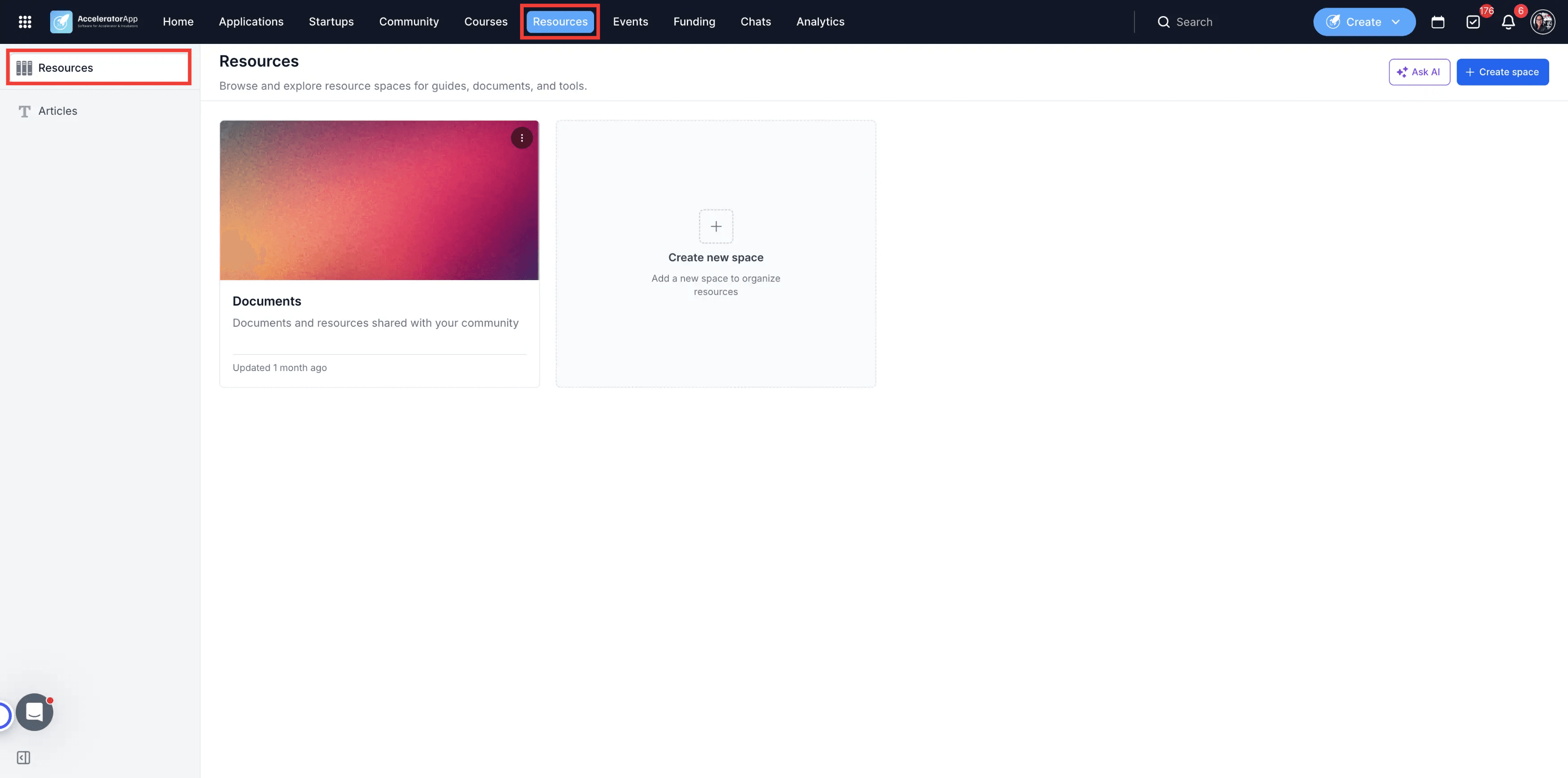
Click Resources in the top navigation menu. The landing page shows a grid of all the Spaces you have access to.
Step-by-Step
1. Explore Spaces
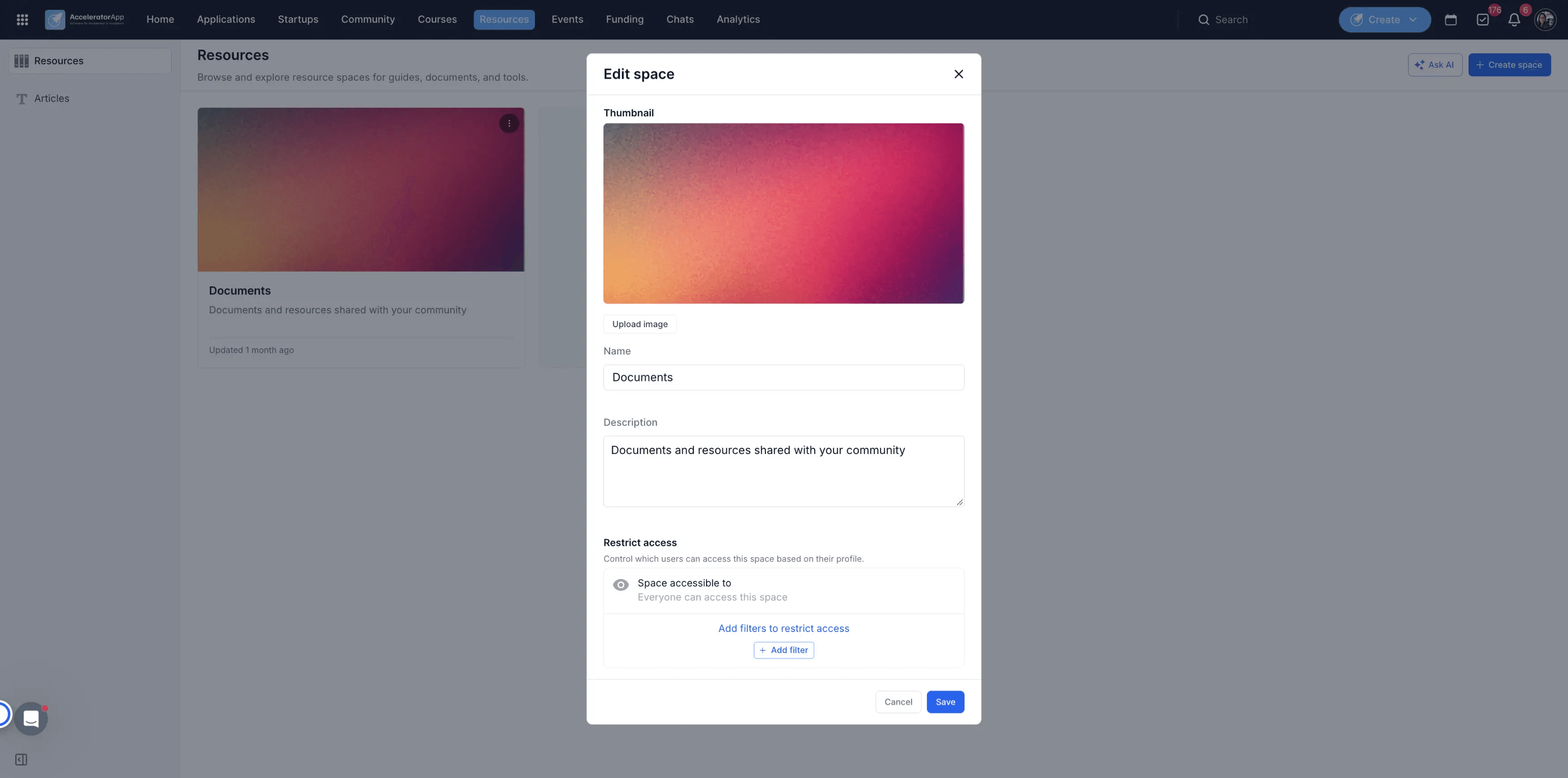
Spaces are the top level of Resources, and each one groups content around a topic or audience, such as "2026 Programs Resources" or "Mentor Resources." Each Space card shows its cover image, name, description, number of folders and resources, and a visibility badge. Members Spaces are visible only to signed-in users.
Each Space also has its own Ask AI assistant, which answers questions using only that Space's content. If this is not available for you you may want to check your plans with your Customer Success Manager.
2. Explore Folders and Sub-folders
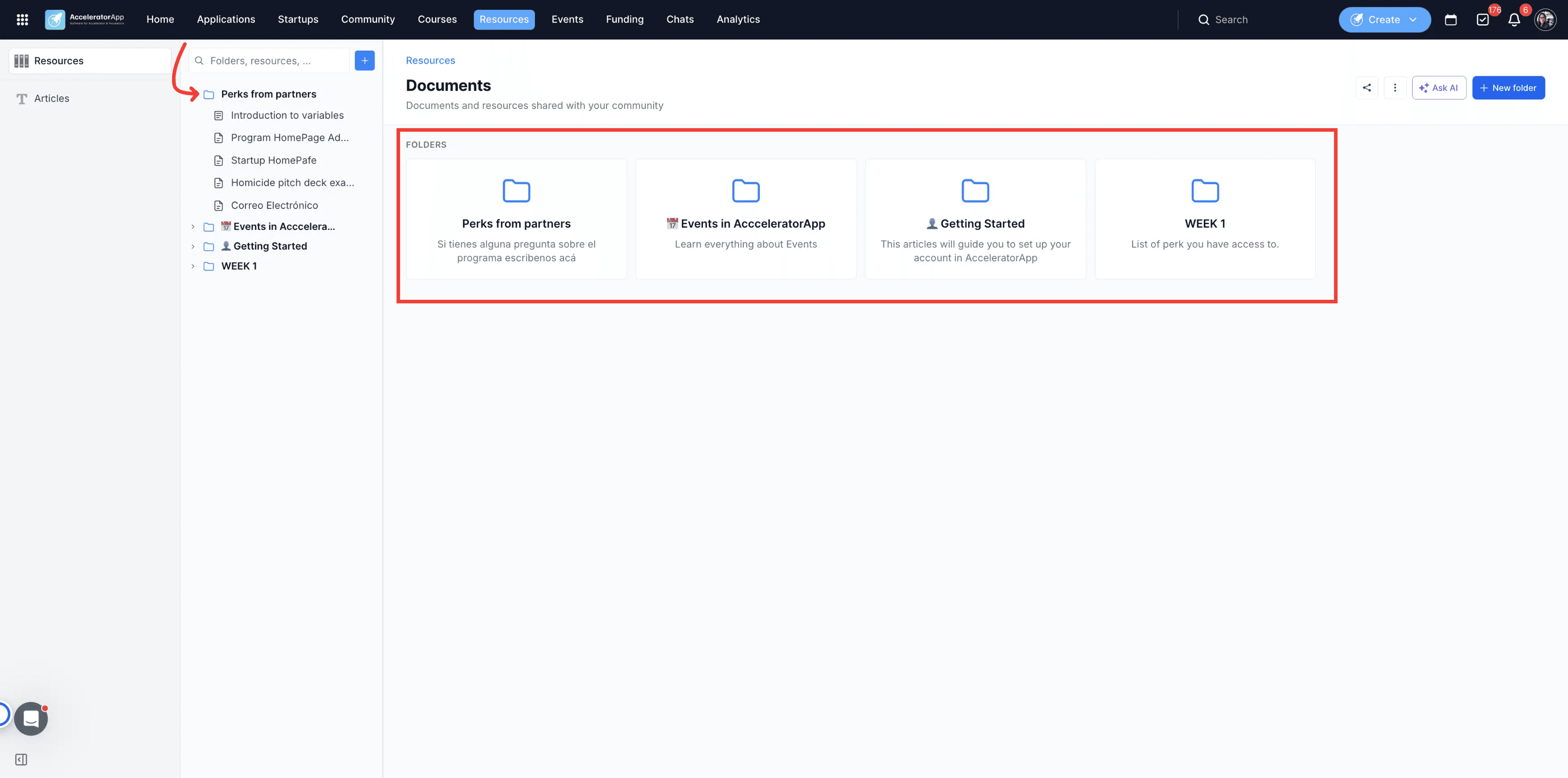
When you open a Space, you'll see a folder tree on the left and the contents of your current location in the main area. Folders organize resources within a Space, and you can nest Sub-folders as deep as you need. Use the breadcrumb at the top to jump back to any level. Folders can have access restrictions based on user role, program, tag, or industry. Users who don't match a folder's restrictions won't see the folder or anything inside it.
3. Explore Resources
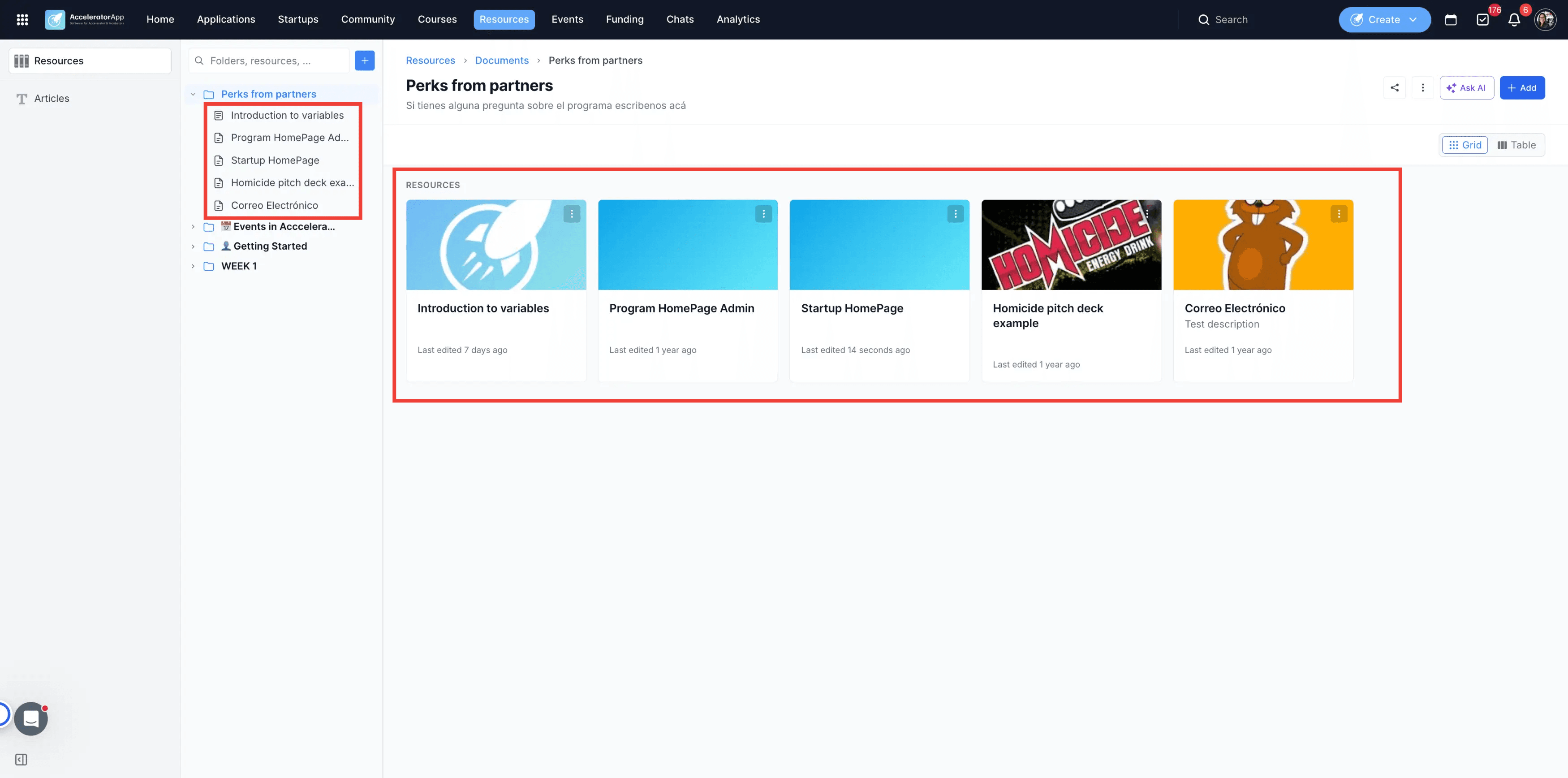
Resources are the actual content, and they come in two types. Article resources link to one or more articles from the Articles section, including different language versions. Other resources contain an external link and/or an uploaded file, with the option to allow downloads. A resource can live inside a folder or directly at the root of a Space, and each one can have its own thumbnail, tags, and access restrictions.
4. Understand How Access Works Across Levels
Access restrictions add up as you go down the hierarchy. A user can only see a resource if they have access to its Space, every folder above it, and the resource itself. For a full breakdown of how folder and resource restrictions combine, see Understanding Access Restrictions in Resources.
Best Practices
- Plan your Spaces around audiences or topics, since they're the first thing users see when they open Resources.
- Set access restrictions at the folder level when a whole group of resources shares the same audience, and use resource-level restrictions only for exceptions.
- Keep your folder structure to three or four levels deep when possible, so the folder tree stays easy to scan.
- Add tags to resources to categorize content across folders, since users can filter by tag.
- If you're coming from the previous version, review your default Space: rename it, add a cover image, and delete any empty folders that came from sections without resources.